
How to take a scrolling screenshot in Windows 11
Print Screen only captures what fits on your screen. To capture a long web page, chat or document in one picture, use one of these four methods.
Steps checked November 2026
The quick answer
- Web page in Edge: press Ctrl+Shift+S, then choose Capture full page.
- Web page in Firefox: right-click the page, choose Take Screenshot, then Save full page.
- Web page in Chrome: open developer tools and run Capture full size screenshot.
- Any long window: use a screenshot tool with scrolling capture, such as CaptureWorx.
The Windows Snipping Tool captures a rectangle, a window, the full screen or a freeform shape. Microsoft’s documentation doesn’t list a scrolling mode.
1. Microsoft Edge: capture a full web page
- Open the page in Microsoft Edge.
- Press Ctrl+Shift+S, or open the … menu and choose Screenshot. Older versions call it Web capture.
- Choose Capture full page. Edge scrolls the page and stitches it into one image.
- Draw on it if you like, then copy it or save it to your Downloads folder.
Works for web pages in Edge only, not for other apps.
2. Firefox: save a full page
- Open the page in Firefox.
- Right-click an empty part of the page and choose Take Screenshot, or press Ctrl+Shift+S.
- Choose Save full page, then copy or download the image.
3. Google Chrome: use developer tools
Chrome has no full-page button, but its developer tools can do it:
- Open the page and press F12 to open developer tools.
- Press Ctrl+Shift+P to open the command menu.
- Type screenshot and choose Capture full size screenshot. Chrome saves the image to your Downloads folder.
The same steps work in Microsoft Edge’s developer tools.
4. CaptureWorx: scroll-capture any window
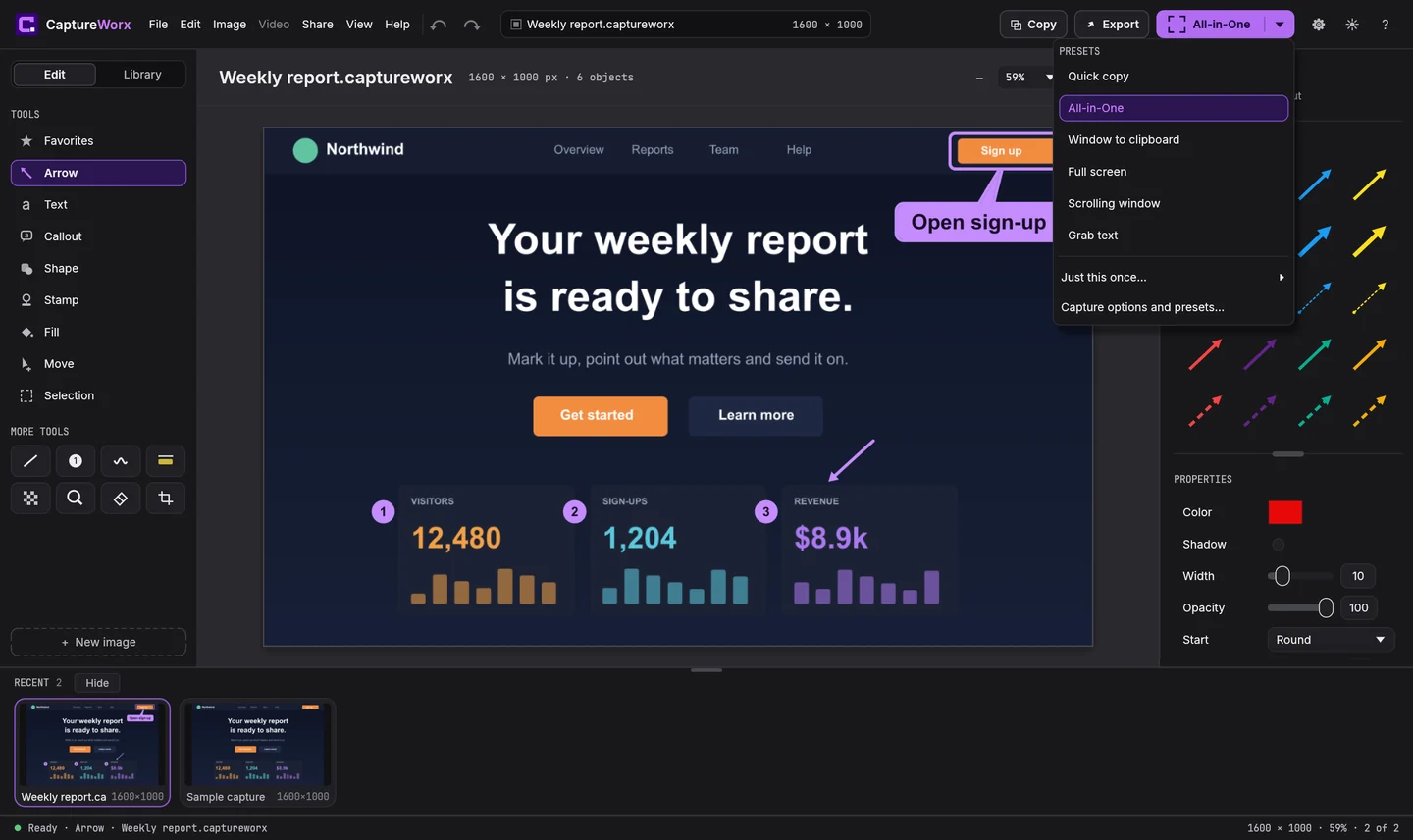
Browser tools only see web pages. CaptureWorx has a Scrolling window capture for long windows in other apps too, and opens the result in its editor so you can mark it up straight away.
- Open the capture menu next to the Capture button and choose Scrolling window.
- CaptureWorx captures the long window and stitches it into one picture.
- Add arrows, numbered steps or blur, then copy, save or share it.
- Doing this often? Give the Scrolling window preset its own keyboard shortcut in Settings › Shortcuts.
CaptureWorx is coming soon to Windows. Get a release email.
Tips for better scrolling screenshots
- Close pop-ups first. Cookie banners and chat bubbles can repeat down a stitched image.
- Watch sticky headers. A header that stays on screen can appear more than once. Scroll to the top before you start.
- Blur private details. Long captures often include names, emails or account numbers further down the page.
- Crop the result. Trim empty space at the bottom so the important part stands out.
Want to compare tools? See how CaptureWorx compares with the Windows Snipping Tool and with Snagit.
Questions
Does Windows 11 have a built-in scrolling screenshot?
Not for every app. Print Screen and the Snipping Tool capture what’s visible on screen. For web pages, Microsoft Edge and Firefox can capture the full page. For other apps, you need a tool with scrolling capture, such as CaptureWorx.
What is the shortcut for a full-page screenshot in Edge?
Press Ctrl+Shift+S in Microsoft Edge to open the screenshot tool, then choose Capture full page.
Can I take a scrolling screenshot of a document or app, not a web page?
Browser tools only work on web pages. CaptureWorx’s Scrolling window capture works on a long window in other apps too, and stitches it into one picture.
What is a scrolling screenshot?
A scrolling screenshot, or long screenshot, captures content that’s taller than your screen by scrolling through it and stitching the parts into one image.
Scroll-capture any window with CaptureWorx
Coming soon to Windows. Leave your email to hear when it’s ready.